
There’s nothing more annoying than watching your laptop battery drop from 80% to 10% in minutes — especially when you’re working on something important. Fast battery drain can make even a reliable device feel outdated. The truth is, a weak battery is often a symptom of a deeper problem. It might be your system settings, software conflicts, or even internal component wear.
Ignoring the early signs can lead to more costly repairs later on. Recognising when your device simply needs a few tweaks versus when it requires professional laptop repair can help you avoid frustration and downtime. This guide explores the most effective ways to extend your laptop’s battery life, prevent future issues, and keep your device running smoothly every day.
Understanding Why Laptop Batteries Drain Quickly
Batteries lose efficiency over time, but several user habits accelerate the process. By understanding what’s causing rapid power loss, you can easily prevent unnecessary wear and improve long-term performance.
Background Tasks That Drain Power
Your system might look idle, but plenty happens in the background. Syncing apps, cloud storage tools, and software updaters consume energy even when you aren’t actively using them. Disabling non-essential background tasks or adjusting startup programs can noticeably improve your battery duration.
Display and Connectivity Settings
The screen is one of the biggest energy consumers. Keeping brightness at maximum or leaving Wi-Fi and Bluetooth on constantly drains more power than most realise. Reducing display brightness, switching off wireless connections when unused, and avoiding animated wallpapers can make your battery last significantly longer.
Hardware Age and Usage Patterns
Even the best hardware deteriorates with time. If your laptop is over two or three years old, some drop in battery capacity is expected. Excess heat, constant charging, and running resource-heavy apps can accelerate this decline. Regular check-ups and avoiding overheating can help maintain steady performance.
Simple Habits That Help Preserve Battery Life
Improving your laptop’s battery health doesn’t always require technical expertise. Small, consistent adjustments to your daily usage can extend battery longevity by months — or even years.
Enable Battery Saver or Eco Mode
Modern operating systems include battery-saving features that automatically reduce performance demands when you’re unplugged. These modes adjust screen brightness, background activity, and processor speed without compromising essential functionality.
Manage Display Brightness
Keeping your screen at maximum brightness drains more energy than necessary. Lowering brightness to about 50–70% offers a comfortable viewing experience while cutting consumption dramatically.
Disconnect Unused Devices
External drives, mice, and USB devices continue drawing power even when idle. Disconnecting them when not needed prevents unnecessary battery loss and helps your device stay cooler.
Avoid Resource-Heavy Applications
Programs like video editors, games, or virtual machines consume a lot of energy. Close them when you don’t need them, and avoid multitasking with too many tabs or applications open at once.
When Software Fixes Aren’t Enough
Sometimes, battery drainage isn’t caused by poor settings — it’s a deeper hardware issue. Recognising when to seek professional support is essential to prevent further damage.
Spotting Warning Signs
If your laptop refuses to charge fully, shuts down suddenly, or feels unusually hot, you might be facing a damaged charging circuit or degraded battery cells. Ignoring these signs can affect performance and even pose safety risks if the battery swells.
Why Professional Help Matters
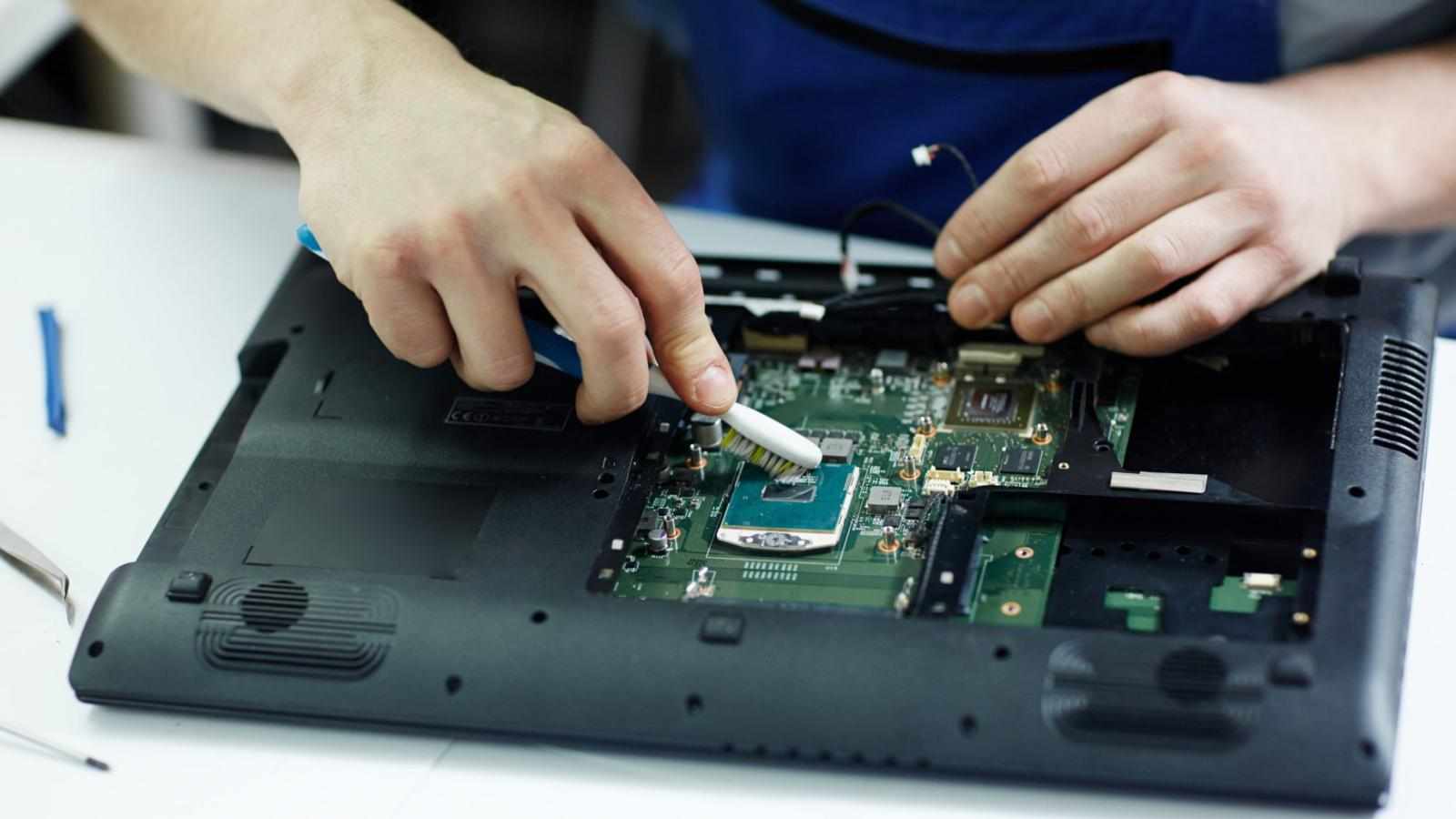
DIY fixes can make things worse. Professional technicians have diagnostic tools to accurately assess hardware problems and recommend the right solution. Whether it’s a battery replacement or internal circuit repair, expert handling ensures safety and reliability.
Keep Your Files Safe During Service
Before any servicing, safeguarding your data is vital. Unexpected loss can occur during part replacement, system resets, or drive failures.
Backups Are Essential
Make a habit of regularly backing up your files to a cloud platform or external hard drive. That way, if anything goes wrong, your data remains secure and easily retrievable.
Secure Data Recovery Options
If you’ve already lost critical files due to battery or system failure, don’t panic. Professional data recovery specialists can often retrieve documents, photos, and even entire folders from damaged drives or malfunctioning systems. Their expertise ensures your valuable data isn’t gone for good.
The Power of Positive Reviews
When it comes to choosing a technician or service centre, real customer experiences are your best guide. They reveal how a business treats clients and how effectively it resolves problems.
What Reviews Tell You
Strong positive reviews show that customers are satisfied with the quality, transparency, and timeliness of the service they received. A good rating means you can expect reliable results without hidden costs or poor communication.
Why Feedback Builds Trust
Genuine feedback demonstrates consistency. It highlights businesses that deliver on promises, handle repairs professionally, and support customers after the service is complete. Taking the time to read reviews before choosing a technician ensures your laptop is in safe hands.
Finding the Right Laptop Expert in Adelaide
Your location matters when seeking professional assistance. Having someone nearby who understands your needs makes maintenance quicker and easier.
Benefits of Local Professionals
Working with a laptop expert in Adelaide means you can easily drop off your device, explain the issue face-to-face, and get quick updates. Local specialists often offer more personalised service, which can make the process smoother and more trustworthy.
Long-Term Support and Maintenance
Forming a relationship with a skilled local technician helps you maintain your device for years. They can provide guidance on preventing battery wear, cleaning internal components, and updating software to keep performance consistent.
Smart Habits to Prevent Battery Issues
Once your laptop is back to normal, maintaining it properly can prevent recurring problems. Following a few simple maintenance habits ensures your system runs efficiently and stays in top condition.
Keep System Software Updated
Manufacturers regularly release updates to improve power efficiency. Keeping your system and drivers up to date helps optimise battery performance automatically.
Avoid Continuous Charging
Leaving your laptop plugged in 24/7 might seem convenient, but it generates heat that gradually weakens battery health. Unplug it once it’s fully charged, and avoid using it on soft surfaces that trap heat.
Proper Storage Practices
If you won’t be using your laptop for a while, charge it to around 50% and store it in a cool, dry place. This prevents both over-discharge and overheating, which can permanently damage the battery.
Schedule Periodic Check-Ups
Annual inspections help identify minor issues before they become major ones. Professionals can assess battery health, clean internal components, and ensure everything runs at peak efficiency.
Frequently Asked Questions
Q1: Can replacing the battery solve performance issues?
Yes. A fresh battery can stabilise performance, reduce sudden shutdowns, and improve runtime if the old one has lost capacity.
Q2: How often should I calibrate my laptop battery?
Once every few months. Let your laptop fully charge, then discharge to near zero to help the system accurately measure battery levels.
Q3: Is it okay to keep my laptop plugged in all day?
While newer models handle charging better, constant plugging increases heat and shortens battery life over time. Unplug periodically to cool things down.
Q4: How do I know it’s time to call an expert?
If your laptop refuses to hold a charge, overheats frequently, or loses power unexpectedly, a professional inspection is the safest and most reliable option.
Conclusion
Laptop batteries naturally degrade over time, but you can slow this process through smart use and regular maintenance. Reducing brightness, closing background apps, and avoiding constant charging go a long way toward extending your battery’s lifespan. When issues become persistent, professional support ensures your device receives the care it needs. Reliable repair specialists like Digimob offer trusted solutions, combining expert service with secure handling to get you back up and running without stress. With the right habits and timely attention, your laptop will continue powering your productivity for years to come.











Write a comment ...